![logo_rkMark.svg]](https://support.robokind.com/hubfs/Media%20Kit/media-kit_2018-11/logos/SVG/logo_rkMark.svg)
Accessing the Goal Tracker:
-
Log into RoboKind Central.
-
Navigate to "Manage Students".
-
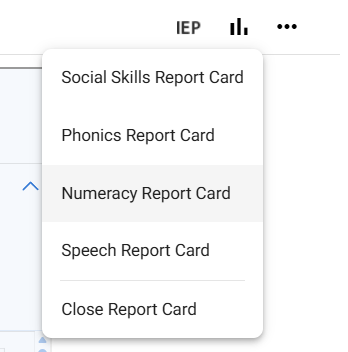
Upon opening, locate the student's name and click on the graphic/icon next to it.
-
Select "Numeracy Report Card" to view.
Navigating the Numeracy Report Card:
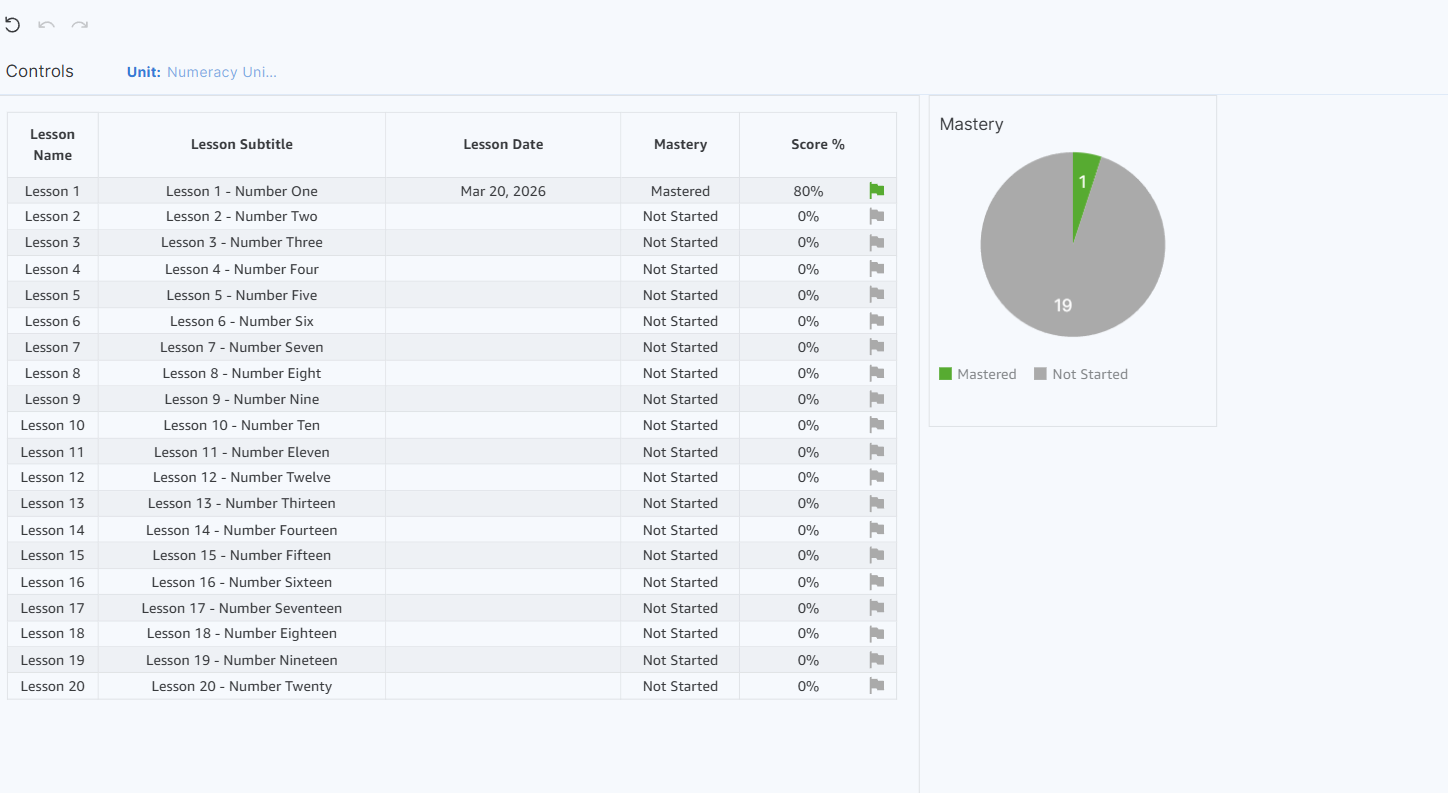
Here's an example of what a RoboKind Numeracy Report Card looks like:
Controls:
-
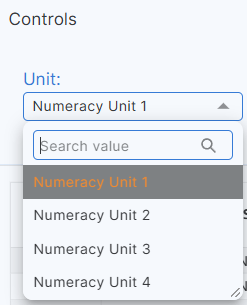
Under "controls", there's a dropdown box to select the specific unit.
Lesson Details:
-
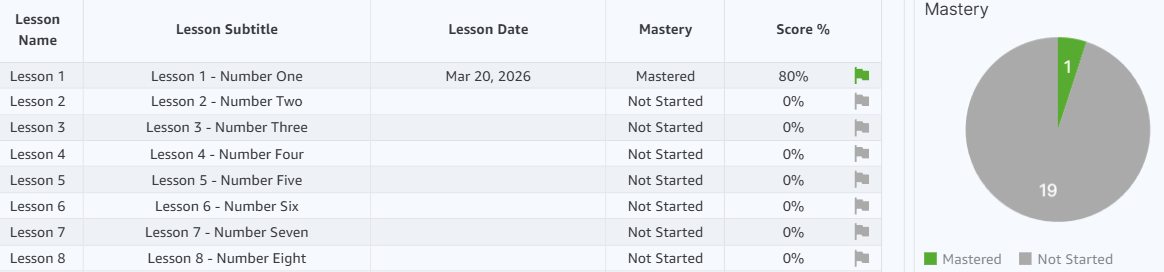
View the lessons completed by the student and the respective dates.
-
Check if the student achieved mastery for each lesson and view the corresponding percentage score.
-
The score is derived from the student's answers to five questions within the lesson (3 multiple choice and 2 yes/no).
-
A score of 80% or higher earns a green flag, indicating mastery.
-
Scores below 80% earn a yellow flag, indicating the student is still learning.
-
Visual Representations:
-
On the right side, view a Mastery pie chart displaying the student's overall performance.
-
See the average teacher evaluation and average teacher engagement level rating.
-
These visuals are generated from the data displayed on the left side of the visual.
-

Exporting the Report:
-
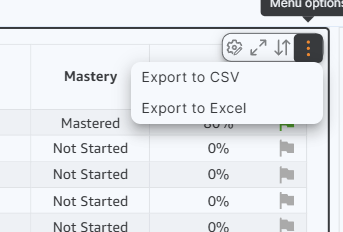
Click on the three dots located at the top right of the report.
-
Choose to export the data as a CSV or Excel file.
Tips:
-
Regularly check the Numeracy Report Card to monitor student progress and adjust implementation strategies as needed.
-
Share the report with the student's support team to ensure collaborative efforts in supporting the student's learning journey.